Solar Manager
The station has a built-in Solar Manager client. You turn it on with one click in the station's web portal; the station then connects to Solar Manager by itself. You do not need a separate gateway, Modbus settings or port forwarding. After you have added the station to your Solar Manager account, it appears in the Solar Manager app and portal and can be controlled from there.
The whole setup takes about 10 minutes, most of which is waiting.
How it fits together
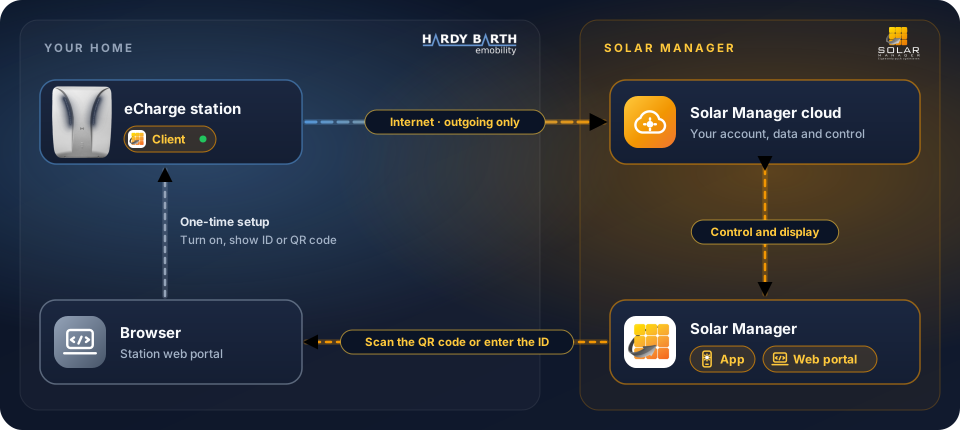
- The eCharge station has the Solar Manager client built in. Once it is turned on, the station connects through your router to the Solar Manager cloud. The connection is outgoing only; you do not need to open any ports.
- Solar Manager comes as an app for your smartphone and as a web portal for your browser. Both talk to the cloud; that is where you see and control the station later. To add the station, scan the QR code with the app, or enter the ID in the web portal.
- The browser (on a PC, tablet or phone in your home network) is only needed once for the setup: to turn the client on and to show the ID or QR code that links the station to your account.
What you need
- Station firmware 2.5.0 or later. The current version is shown in the eCharge app and in the station's web portal. If it is older, update first through the firmware download portal.
- Internet access for the station. The station connects out to Solar Manager; it does not need to be reachable from outside.
- A Solar Manager account and the Solar Manager app on your phone (or access to the Solar Manager portal).
- The login for the station's web portal (user
userand its password). - A computer, tablet or phone in the same network as the station.
Step 1: Open the station's web portal
- Find the station's IP address:
- in the eCharge app: open the wallbox, go to its details and tap Show more details; the IP address is listed there, or
- in your router: open the list of network devices (often called
"Home network" or "Connected devices") and look for a device with
Saliain its name.
- Type the IP address into the address bar of your browser, for example
http://192.168.178.50, and log in. - Open the Configuration tab.
- Find the Solar Manager block. It sits in the same column as the network options.
If there is no Solar Manager block, the station's firmware is too old. Update it first (see What you need).
Step 2: Turn Solar Manager on
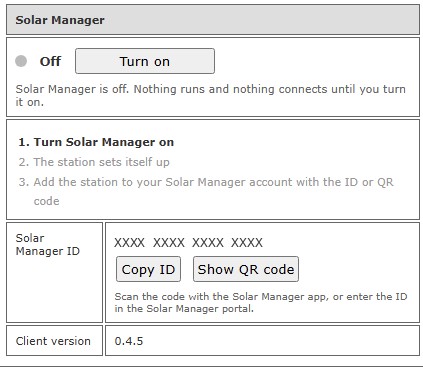
The block shows the status Off: nothing runs and the station does not connect to Solar Manager yet.
Click Turn on. The click takes effect immediately. You do not need to click Save and restart at the bottom of the page, and the station does not restart.
Step 3: Wait until the station has set itself up
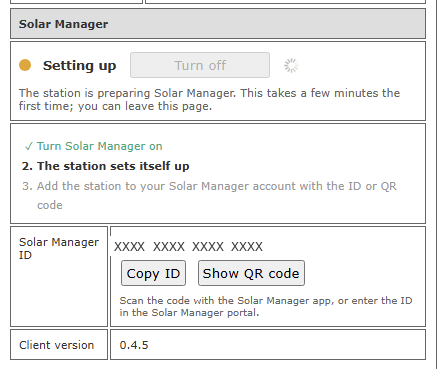
The status changes to Setting up (orange) and step 1 is ticked off. The first time this takes a few minutes. The page updates itself; you can also close it and come back later, the setup continues in the background.
Step 4: Add the station to your Solar Manager account
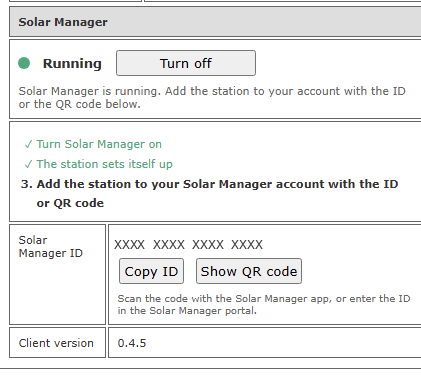
As soon as the status shows Running (green), steps 1 and 2 are ticked off and the block shows the station's Solar Manager ID, a 16-character code. Now add the station to your account, in one of two ways:
With the Solar Manager app (easiest)
-
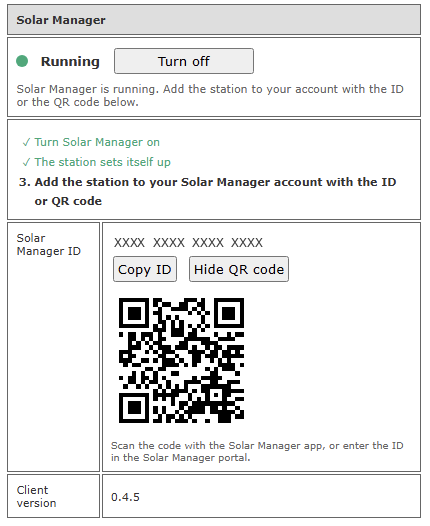
In the station's web portal, click Show QR code. The QR code appears below the buttons, and the button changes to Hide QR code:
-
In the Solar Manager app, add a new device and point the phone's camera at the QR code on the screen.
The QR code in this picture is an example and cannot be scanned into an account. Your station shows its own code.
With the Solar Manager portal
- In the station's web portal, click Copy ID.
- In the Solar Manager portal, add a new device and paste the ID.
Step 5: Check that it worked
Reload the station's web portal. When the station has been added, step 3 is ticked off as well and the block reads "Station added to a Solar Manager account". The station now shows up in the Solar Manager app and portal.
That's it. Solar Manager stays on after a restart or power cut of the station; you only have to do this once.
Keep the ID private
Until the station has been added to an account, the Solar Manager ID is all it takes to add the station to any account. Treat the ID like a password until then: do not post it, and do not share screenshots that show the ID or the QR code. The ID in the pictures on this page is hidden for that reason.
What the status means
| Status | Meaning | What to do |
|---|---|---|
| Off | Solar Manager is off. Nothing runs and nothing connects. | Click Turn on. |
| Setting up | The station is preparing Solar Manager. | Wait a few minutes. |
| Running | Solar Manager is running. | Add the station with the ID or QR code, unless step 3 is already ticked off. |
| Stopping | Solar Manager is being switched off. | Wait up to a minute. |
| Problem | Solar Manager could not be started. | See below. |
Something doesn't work?
- There is no Solar Manager block on the Configuration tab. The firmware is older than 2.5.0. Update the station first.
- "The station could not fetch its Solar Manager ID yet." The station tries again every 15 minutes. Check that the station is online. If the message is still there after an hour, contact support.
- "This gateway is already registered with Solar Manager, but the station no longer holds its access data." This happens for example after a factory reset. Solar Manager cannot start in this state. Contact support.
- The status shows Problem. Click Turn off, wait until the status is Off, then click Turn on again. If the problem remains, contact support and give the client version shown at the bottom of the block.
- "Copy ID" does not work. Some browsers block copying. Select the ID with the mouse and copy it by hand.
Turning Solar Manager off
Click Turn off in the same block. The status changes to Stopping and then to Off. The station then no longer connects to Solar Manager.