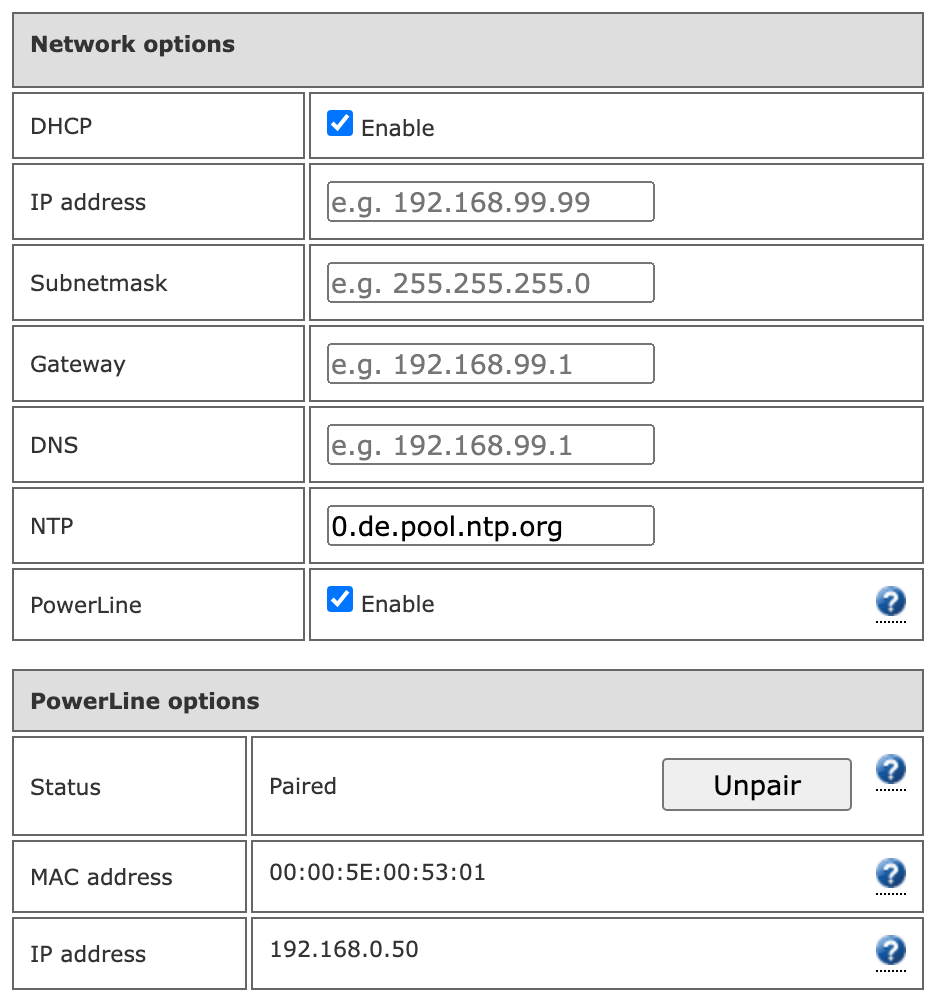

Network Options and PowerLine
The Network options block under Configuration holds the station's IP settings, the time server and, on stations with a built-in PowerLine modem, the switch for the PowerLine link. Saving the configuration page restarts the station.
Network options
| Field | Meaning |
|---|---|
| DHCP | Enabled: the station takes address, gateway and DNS from the router; the fields below are ignored. Disabled: the fields below are used. |
| IP address, Subnetmask, Gateway, DNS | Static configuration, used only with DHCP disabled. |
| NTP | Time server the station synchronises its clock with. Default 0.de.pool.ntp.org; a local server works as well. Wrong time shows up as certificate errors and wrong timestamps in the charging log. |
| PowerLine | Enables the PowerLine link (see below, including the note on reliability). The PowerLine options block appears when it is enabled. |
After a change of the IP address the configuration page is reachable under the new address only. With DHCP, look the station up in the router or use the app.
PowerLine
PowerLine carries the station's network connection over the mains wiring to a powerline adapter near the router, for installations where no network cable reaches the station. The station uses its built-in HomePlug AV modem; the adapter on the router side is a normal HomePlug AV powerline adapter (tested with an AVM FRITZ! Powerline 1220). The link works like a network cable: the IP settings above apply unchanged.
PowerLine is not guaranteed to work. Stability depends on the electrical installation at the site, and the connection can drop while a vehicle is charging. Where possible, use a network cable instead.
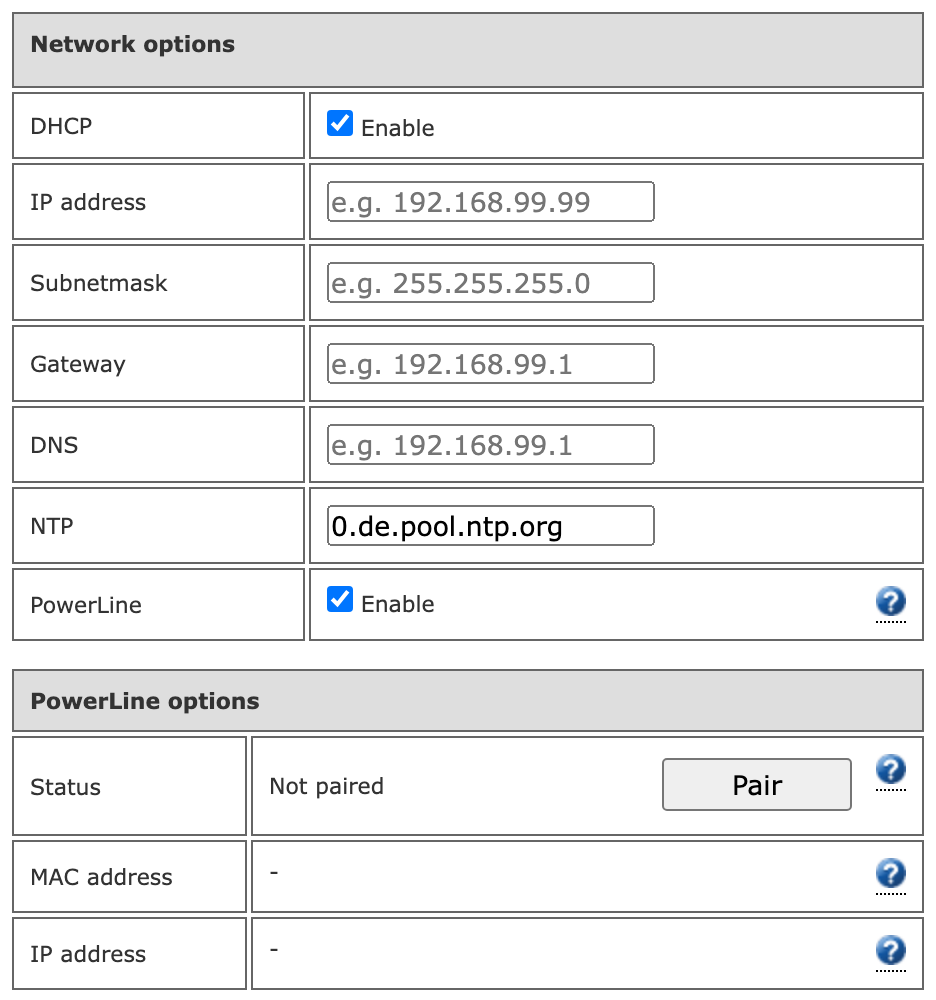
Present in the 2.4.x and 2.5.0 firmware. It needs a board that carries the PowerLine modem (the cPH2 boards used in the field tests do); on a board without the modem, pairing fails and the button stays at Repeat.
Pairing
- Enable PowerLine in the network options and save. The station restarts with the PowerLine modem active.
- Press the Connect (pairing) button on the powerline adapter at the router side.
- In the PowerLine options block click Pair. This triggers the pairing on the station's modem, like pressing a button on it; the page then checks the status for about 30 seconds.
- Status changes to Paired once the adapter is found and the station has an IP address on the PowerLine link (with DHCP the DHCP server must be reachable through the adapter). MAC address shows the adapter's MAC address. IP address shows the station's own address on the PowerLine link; the tooltip in the web UI calls it the remote adapter's address, which is wrong.
If the status is still Not paired after about 30 seconds, the button changes to Repeat: press the adapter's button again and click Repeat. Unpair makes the station leave the powerline network; the adapter is not affected. To reconnect, press the adapter's button and click Pair again.